
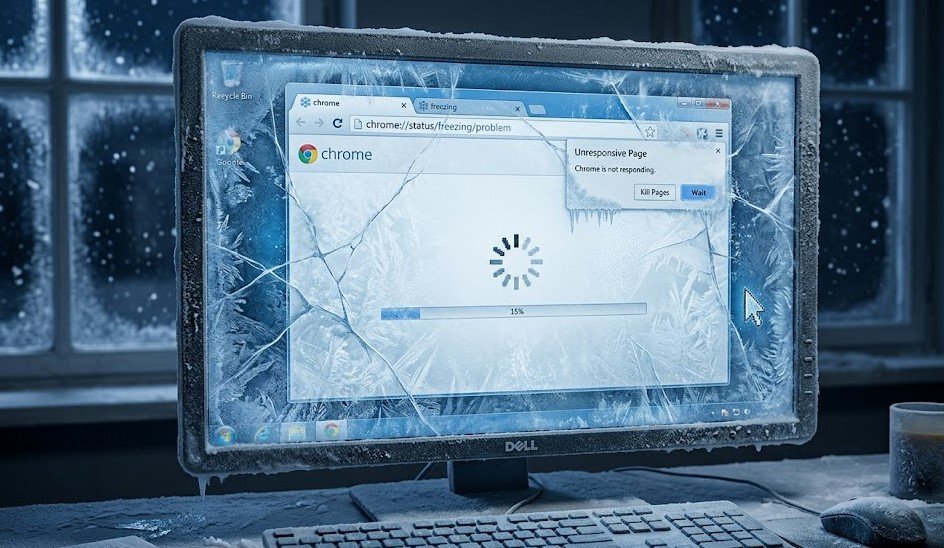
Chrome freezing is a common browser problem where Google Chrome becomes slow, unresponsive, or completely stuck while you are using it. In many cases, pages stop loading, tabs fail to respond, or the entire browser window locks up, forcing you to restart it. This issue can happen suddenly during normal browsing or while using heavy websites like video streaming platforms, online tools, or web applications.
The main reason behind chrome freezing is that the browser struggles to manage system resources properly when too many tasks are running at the same time. Since Chrome is designed to handle multiple tabs, extensions, and background processes, it heavily depends on your computer’s RAM and CPU. When these resources are overloaded or something interferes with Chrome’s normal functioning, freezing occurs.
Common Causes of Chrome Freezing
Chrome freezing usually happens because of multiple hidden issues working together rather than a single direct problem. One of the most common causes is having too many tabs open at the same time. Each tab consumes memory, and when the system runs out of available RAM, Chrome starts slowing down or completely stops responding. Heavy websites like video streaming platforms, online editors, and social media apps make this issue even worse.
Another major cause is problematic extensions. Many users install extensions to improve productivity or block ads, but some of them run continuously in the background and consume resources. If an extension is outdated, corrupted, or poorly designed, it can interfere with Chrome’s normal performance and lead to frequent freezing.
Outdated browser versions, corrupted cache files, and hardware acceleration conflicts are also key reasons behind this issue. When Chrome is not updated, it may not work properly with modern websites. Similarly, stored cache data can become corrupted over time, causing loading errors and lag. In some cases, GPU-related settings like hardware acceleration can clash with system drivers and make Chrome unstable.
Basic Fixes to Stop Chrome Lag
When chrome freezing starts happening, the first step is to apply simple and quick fixes that often resolve the issue without any technical effort. One of the easiest solutions is to close unnecessary tabs and restart the browser. This immediately frees up memory and reduces the load on your system, allowing Chrome to run more smoothly.
Another effective fix is restarting your computer. This clears temporary files and refreshes system resources, which can help Chrome recover from performance issues. In many cases, a simple restart solves minor freezing problems instantly.
Clearing browsing data such as cache and cookies is also highly recommended. Over time, stored data can become heavy or corrupted, which slows down browsing speed. Removing this data helps Chrome load fresh versions of websites and improves overall performance. Disabling unused extensions can also make a big difference, as it reduces background activity and frees up additional system resources.
Advanced Solutions for Persistent Chrome Freezing
When chrome freezing continues even after applying basic fixes, it usually indicates deeper system or browser-level issues. In such cases, more advanced troubleshooting steps are required to restore smooth performance. One of the most effective solutions is disabling hardware acceleration. While this feature helps improve speed by using your GPU, it can sometimes cause conflicts with outdated or incompatible graphics drivers, leading to freezing.
Another powerful fix is resetting Chrome settings to their default state. This removes unwanted changes, disables problematic extensions, and restores original browser configurations. It is especially useful when Chrome has been modified over time by multiple extensions or manual settings changes that affect stability.
Updating Chrome and your system drivers is also critical. An outdated browser may not be fully compatible with modern websites, causing performance issues. Similarly, outdated graphics drivers can trigger lag and freezing during heavy browsing tasks. In severe cases, reinstalling Chrome completely ensures that all corrupted files are removed and replaced with a fresh installation, giving the browser a clean start.
How to Optimize Chrome Performance
Improving Chrome performance is one of the best ways to reduce or completely prevent chrome freezing in the long run. Optimization focuses on managing resources efficiently so that the browser can handle multiple tasks without slowing down or becoming unresponsive. One of the most effective methods is limiting the number of active tabs. Keeping only essential tabs open reduces memory usage and helps Chrome run more smoothly, especially on low or mid-range devices.
Another important optimization step is managing extensions carefully. Extensions should only be installed when necessary, and unused or outdated ones should be removed. Many users don’t realize that even inactive extensions can run background processes that consume system resources. By keeping only essential extensions, Chrome becomes lighter and faster.
You can also improve performance by using Chrome’s built-in Task Manager to identify which tabs or processes are consuming the most memory. Closing high-usage processes immediately can significantly reduce lag. Additionally, keeping your system updated and ensuring enough free storage space helps Chrome function efficiently without unnecessary interruptions.
Preventing Chrome Freezing in the Future
Preventing chrome freezing is easier than constantly fixing it, especially if you maintain good browsing habits and keep your system optimized. One of the most important prevention steps is regularly updating Google Chrome. Updates often include performance improvements, bug fixes, and security patches that help the browser run more smoothly and avoid unexpected crashes or freezes.
Another key habit is avoiding overload on your browser. Try not to open too many tabs at once, especially when using heavy websites like video streaming platforms or online editors. Managing your browsing sessions in a controlled way reduces pressure on system memory and keeps Chrome stable during long usage periods.
It is also important to regularly clean your browsing data and review installed extensions. Removing unnecessary extensions and clearing cache helps prevent hidden performance issues from building up over time. Keeping your computer healthy by updating drivers and ensuring enough free storage space also plays a major role in preventing future freezing problems and maintaining smooth browsing performance.
Conclusion + FAQs
Chrome freezing is a common issue that can affect anyone, but it is usually caused by manageable factors such as too many open tabs, heavy extensions, outdated software, or system resource limitations. By understanding these causes and applying the right solutions, users can significantly improve browser stability and enjoy a smoother online experience. Simple habits like keeping Chrome updated, clearing cache regularly, and managing extensions can make a big difference in preventing future problems.
In most cases, chrome freezing is not a serious issue—it is a performance warning that your browser or system is under stress. With proper maintenance and smart usage, Chrome can run efficiently without interruptions, even during heavy browsing sessions.
FAQs
1. Why does Chrome keep freezing suddenly?
Chrome usually freezes due to high memory usage, too many tabs, or problematic extensions running in the background.
2. How do I fix Chrome freezing quickly?
You can restart Chrome, close unused tabs, clear cache, or disable extensions to quickly resolve freezing issues.
3. Does low RAM cause Chrome freezing?
Yes, low RAM is one of the main reasons Chrome freezes, especially when multiple tabs or heavy websites are open.
4. Is reinstalling Chrome a good fix for freezing?
Yes, reinstalling Chrome can help remove corrupted files and restore smooth performance if other fixes do not work.
For More Update Stay Tunned with Gonzay
 Admin
Admin